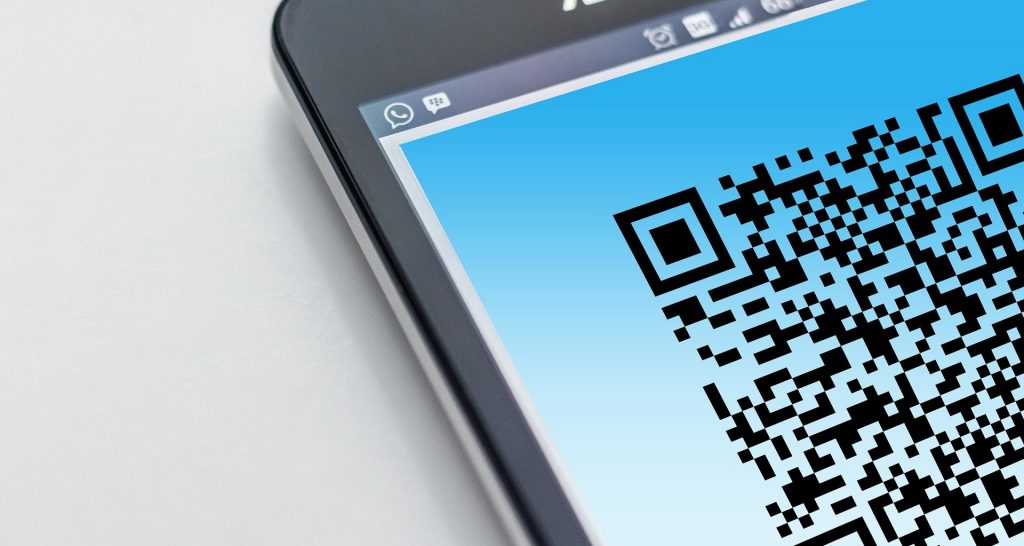
Barcodes are ubiquitous in everyday life. We see them everywhere on tickets, business cards, and invoices. They are one of the best ways to share information or receive it from a third party. For those looking to make themselves known, whether as a business or a freelancer, the need for a personal barcode may arise. But how can you easily create a barcode?
What is a barcode, and what is its use?
The barcode (flashcode, or QR code) describes an electronically readable font. It consists of bars and spaces of varying widths, arranged parallel to each other. This form of representation contains symbols or binary data and can therefore be read by scanners or cameras with the appropriate software. This data can be a price, a product number, an address, or even a personal message.
Barcodes are becoming increasingly popular due to their adaptability. They can be used to collect anonymous feedback online to optimize certain products or services. QR codes also help enhance customer loyalty through images or videos. They can even be used to promote events, such as festivals, with just a single scan. Creating your own barcode is quite easy. You can do it for free, but how do you proceed?
How to create your own barcode?
Here are some practical ways to create a barcode for free.
Create a barcode on smartphone or tablet
If you are looking for an app for Android, iOS, or iPadOS that allows you to easily and freely create barcodes, one recommendation is to check out the Binary Eye app. It is a user-friendly, ad-free, open-source application. It is available on smartphones and tablets via app stores.
On the main screen of this app, tap the + icon and, from the drop-down menu at the top, select the type of barcode you wish to generate (for example, EAN 8 or EAN 13). Then adjust the bar corresponding to the size in pixels of the generated barcode, and type the number to assign in the Content area. Now, simply tap the > icon at the bottom to generate the barcode, which you can save on your Android device.
Create a barcode online
Online, you can find useful tools to generate your business barcode. These are called “barcode generators“. Most of these services are in English but can be easily translated with Google Translate.
To find a barcode generator, just type “barcode generator” in your search engine. Upon accessing the homepage, you can choose the standard to use, fill out a form with all the details, and generate the barcode for free, customizing it to your liking. Online sites also allow you to store the code on your PC in various formats (EPS, PNG, JPEG).
Create a barcode in Word
It is also possible to create a barcode in Microsoft Word, using field codes or an add-in. Just follow these steps:
- Open a new Word document and use the keyboard shortcut [CTRL] + [F9] to create a new field;
- In the new field, enter the following command between the braces: DISPLAYBARCODE « … » QR q 3.
Note: Inside the quotes, enter the link to the website you want your QR code to lead to.
- Then, right-click on the function and select “Toggle Field Codes” to display your QR code.
Create a QR code for your Wi-Fi network
There is a solution to give your guests easy access to your home Wi-Fi. To do this:
- Look at the back of your router for your network credentials;
- Then open an online barcode generator and enter the corresponding access data (SSID, password, encryption type);
- Next, click on “Create QR Code“.
- Then click on “Print” or “Download JPG” to save it as an image or digital file.
If the code is later scanned, the smartphone will automatically connect to the WLAN.
Testing the barcode: how to do it?
After printing, you must test the barcode. Ideally, it is recommended to use an appropriate barcode scanner. If no scanner is available, there are several barcode scanner apps for smartphones available as alternatives.